
Step-by-Step Guide to Install IPTV on Amazon Fire TV or Fire Stick
To get started with IPTV on your Fire TV or Fire Stick:
Open the Amazon App Store on your FireStick device.
Search for the “Downloader” app and install it.
This tool lets you easily download and install third-party APKs on your FireStick.
Method 1: Install IPTV Smarters Pro on FireStick
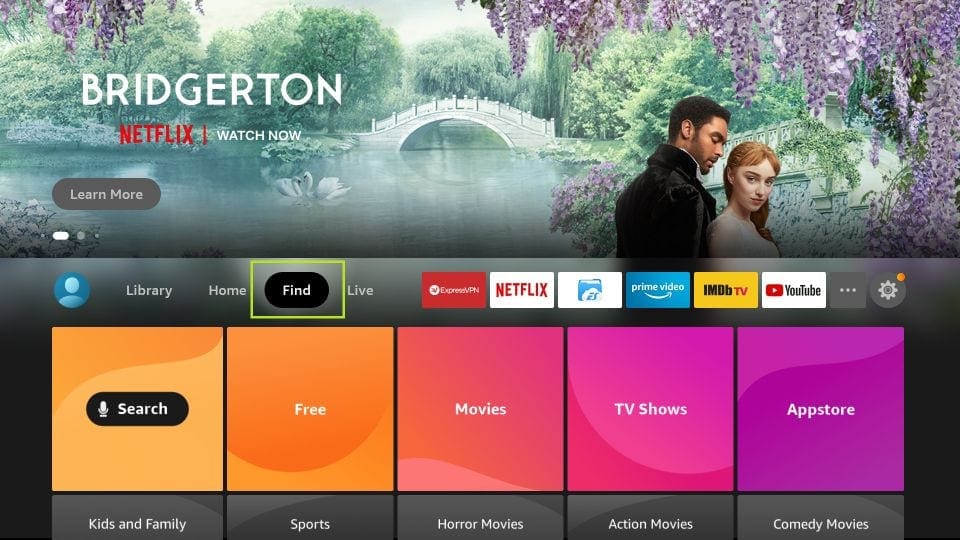
Make sure you’re on the FireStick Home Screen.
Select the “FIND” option and begin the IPTV Smarters Pro setup process.
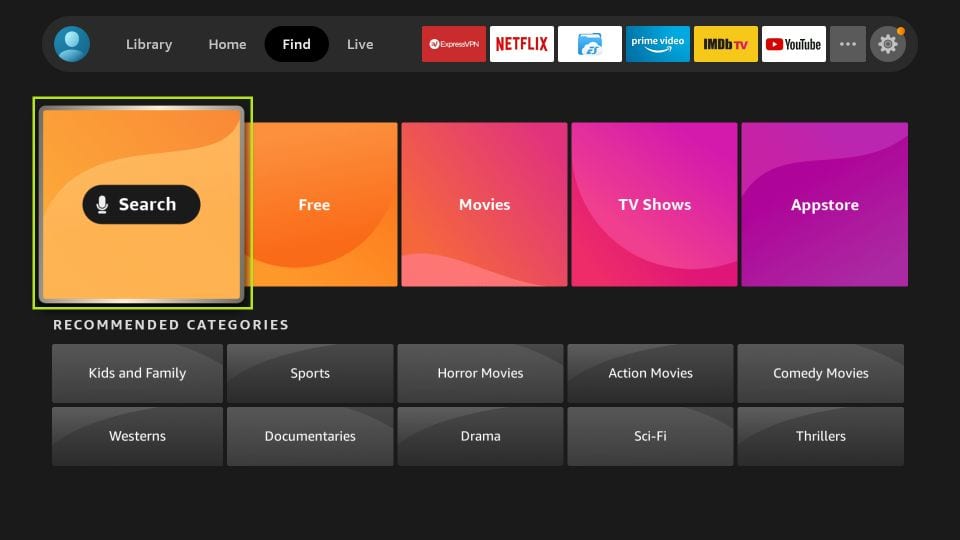
- Now, click Search
Step 2: Install the Downloader App on FireStick
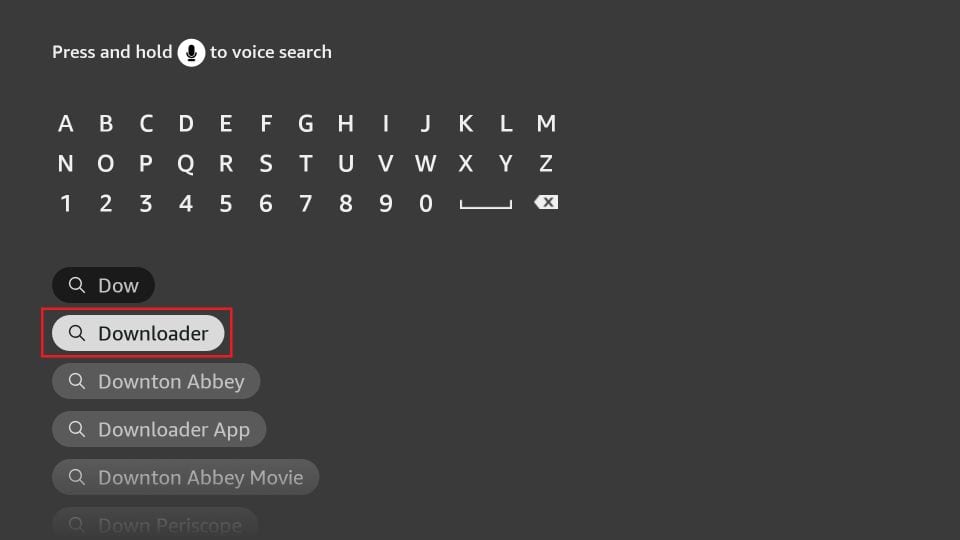
In the Search Bar, type “Downloader” and select the app from the results.
This essential tool enables you to sideload IPTV Smarters Pro onto your Amazon Fire TV or FireStick with ease.Follow the on-screen prompts to complete the installation successfully.
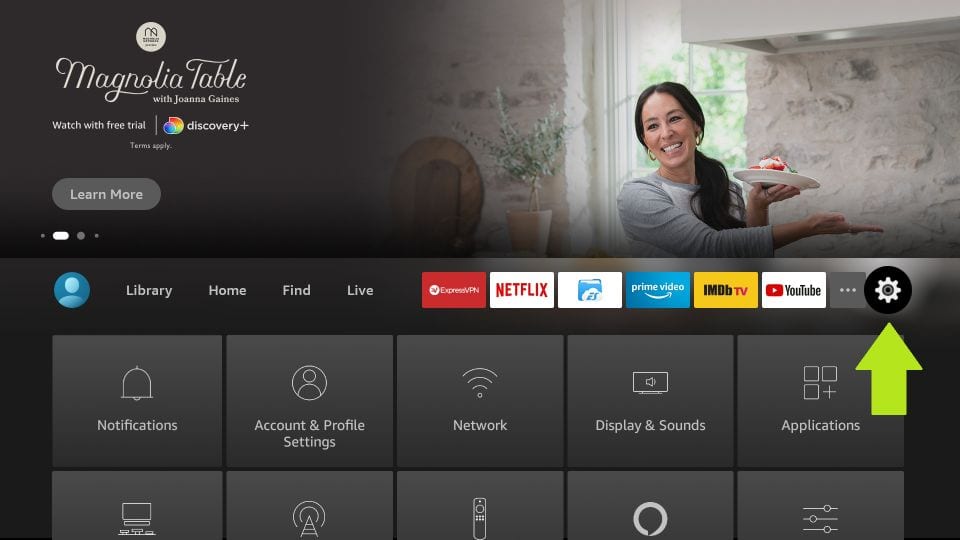
Step 3: Return to Home and Access FireStick Settings
Once the Downloader app is installed, go back to the FireStick Home Screen, scroll to the right, and select “Settings” to continue your IPTV setup process.
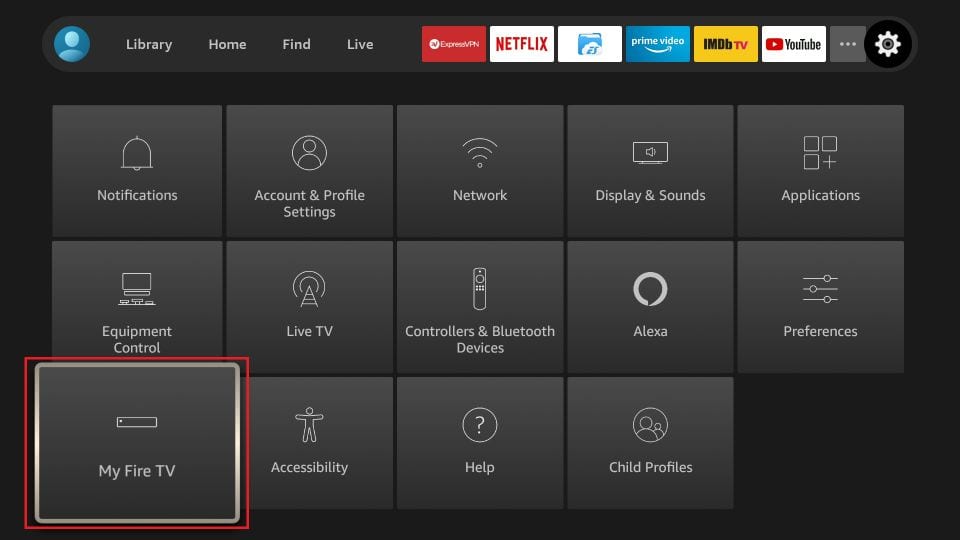
Step 4: Access My Fire TV Settings
In the Settings menu of your Amazon Fire TV or FireStick, scroll and click on “My Fire TV” to move forward with your IPTV installation.
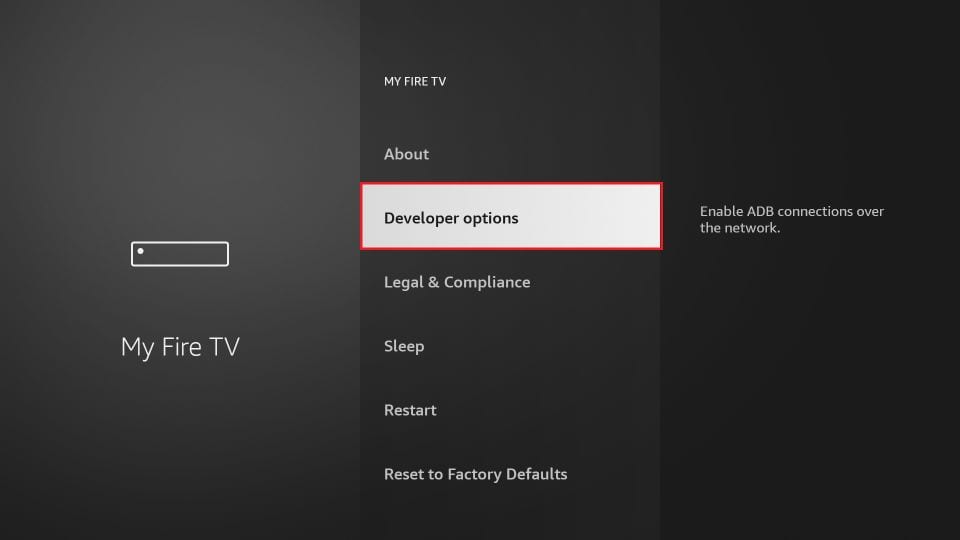
Step 5: Open Developer Options on FireStick
From the My Fire TV menu, select “Developer Options” to continue setting up IPTV on your Amazon FireStick or Fire TV device.
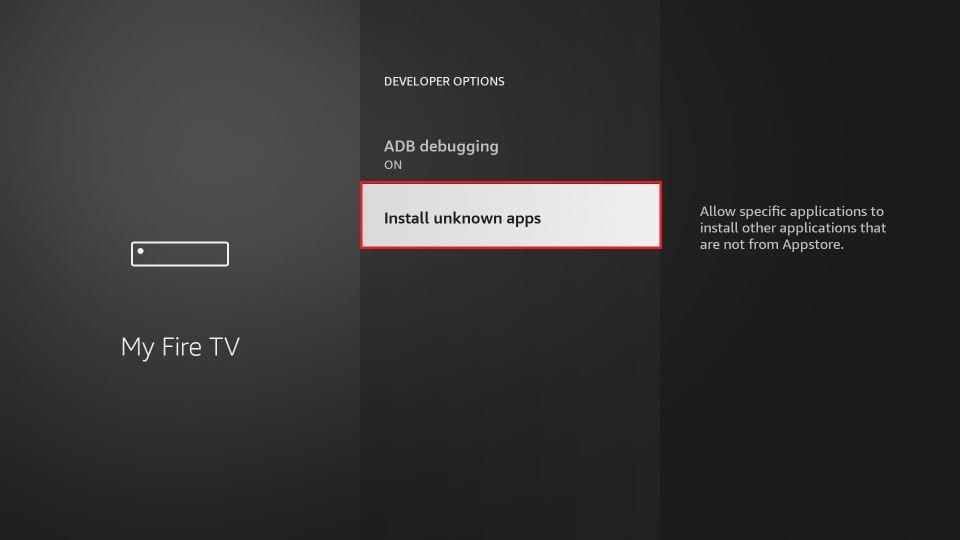
Step 6: Enable Unknown Apps on FireStick
In the next window, click on “Install Unknown Apps” to allow IPTV app installation.
Note: If you’re using an older version of the FireStick interface, select “Apps from Unknown Sources” instead.
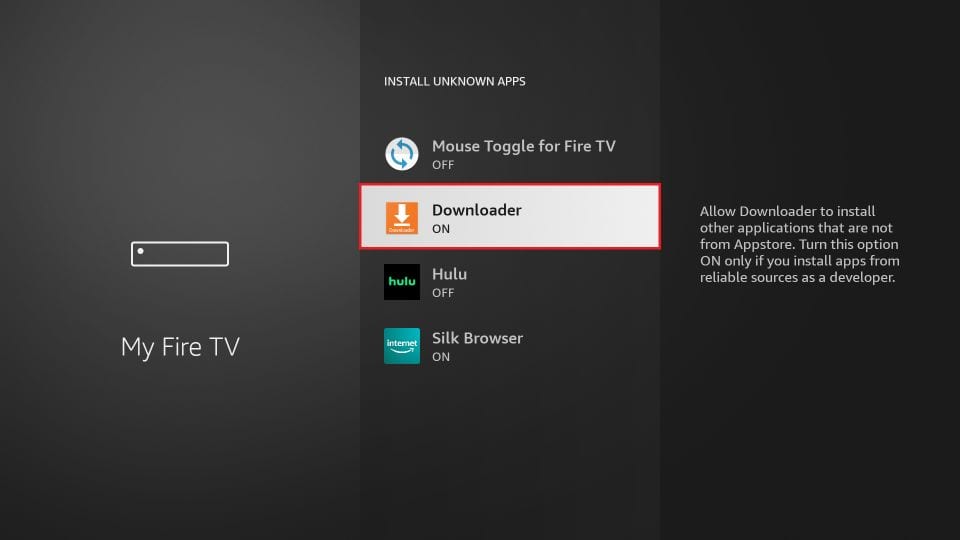
Step 7: Activate Downloader App Permissions
Locate the Downloader app in the list and toggle the switch to ON to enable installation access.
Install Smart IPTV on Amazon FireStick or Fire TV – Step-by-Step Guide
After enabling Apps from Unknown Sources, you’re ready to install Smart IPTV. Follow these optimized steps:
Launch the Downloader App on your FireStick or Fire TV.
On the first launch, dismiss any prompts by selecting the appropriate options.
Once on the main screen, click the URL field labeled
http://to enter the Smart IPTV download link.
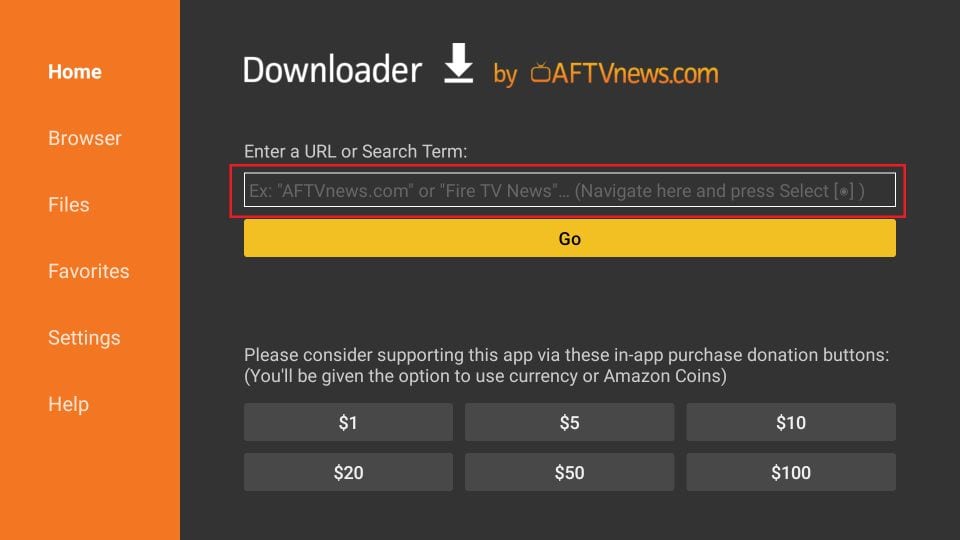
Download IPTV Smarters Pro APK on Amazon FireStick or Fire TV
Using the on-screen keyboard in the Downloader app, enter the following official IPTV Smarters Pro APK link:
👉 https://www.iptvsmarters.com/iptv-smarters-4.0.5.apk
Click OK to begin the download.
✅ Wait for the IPTV Smarters Pro APK to fully download to your Amazon Fire TV or FireStick before proceeding with installation.
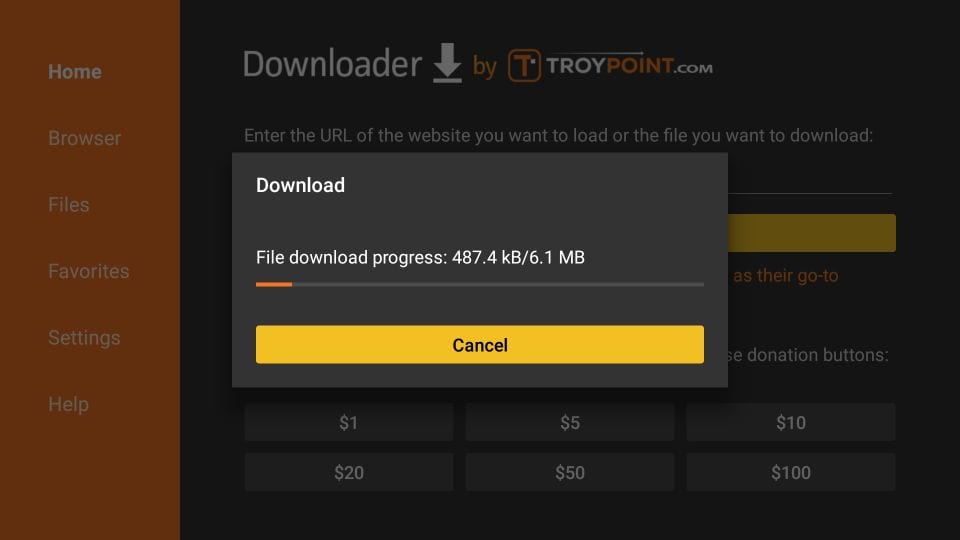
Install IPTV Smarters Pro on Amazon FireStick or Fire TV
Once the Downloader app finishes downloading the APK, it will automatically launch the IPTV Smarters Pro installation screen.
👉 Click Install to begin the setup process.
✅ Allow a minute for the app to fully install on your Amazon FireStick or Fire TV.
How to Launch & Use IPTV Smarters Pro on FireStick
After installation, open the IPTV Smarters Pro app.
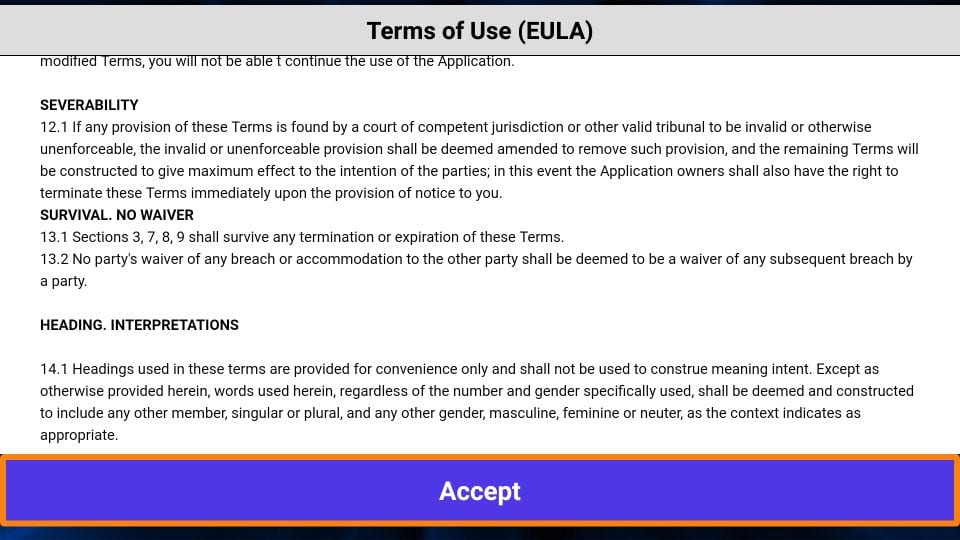
📋 On first launch, you’ll be greeted with the Terms of Use screen.
✅ Scroll down and click Accept to proceed.
Now you’re ready to start streaming Live TV, Movies, and Series seamlessly!
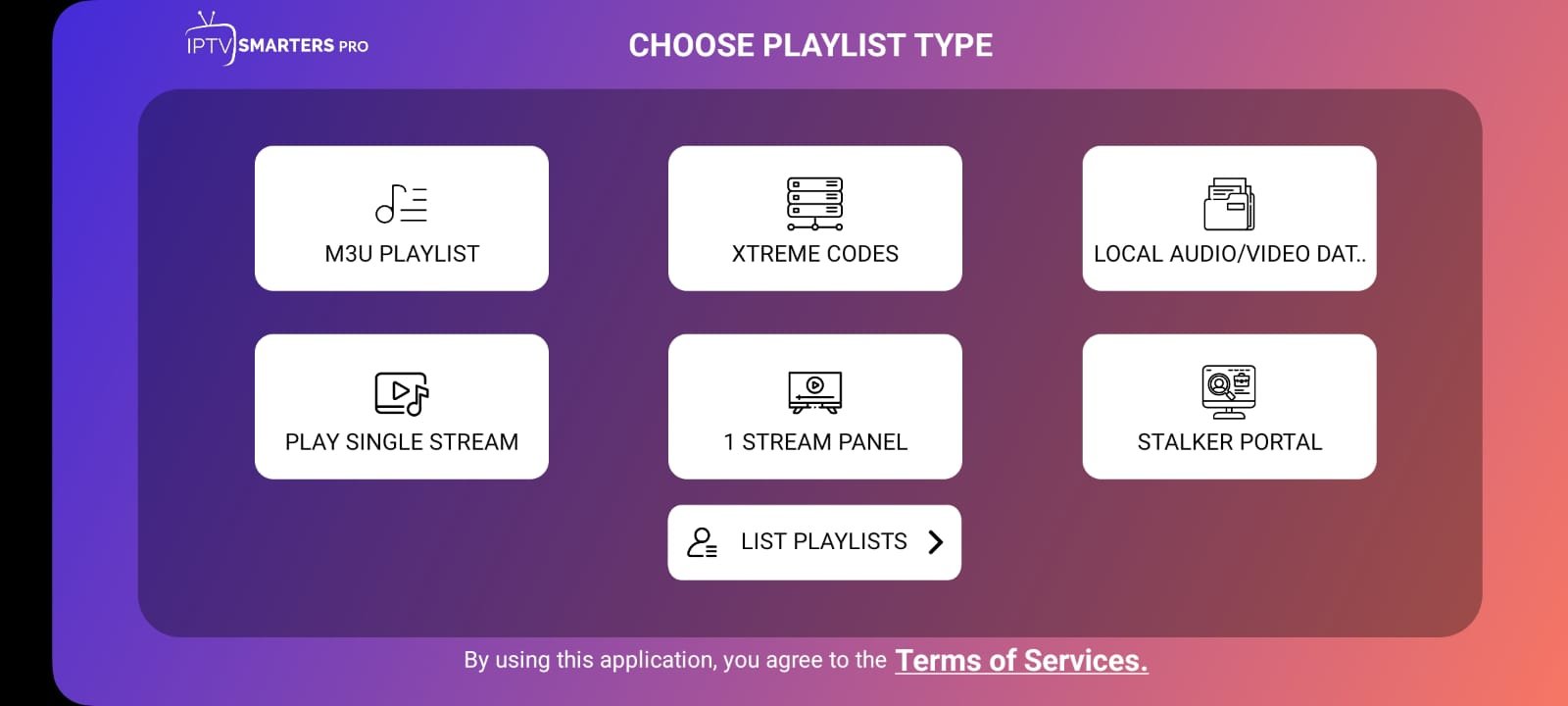
Next Screen: Select XTREAM CODES API to Begin IPTV Setup
On the following screen, initiate your IPTV configuration by clicking on XTREAM CODES API.
This option allows for a faster and more secure IPTV login using your server credentials.
Enter Your IPTV Login Details via Xtream Codes API
After selecting Xtream Codes API, you’ll be directed to the login screen.
Here, enter your IPTV account details including:
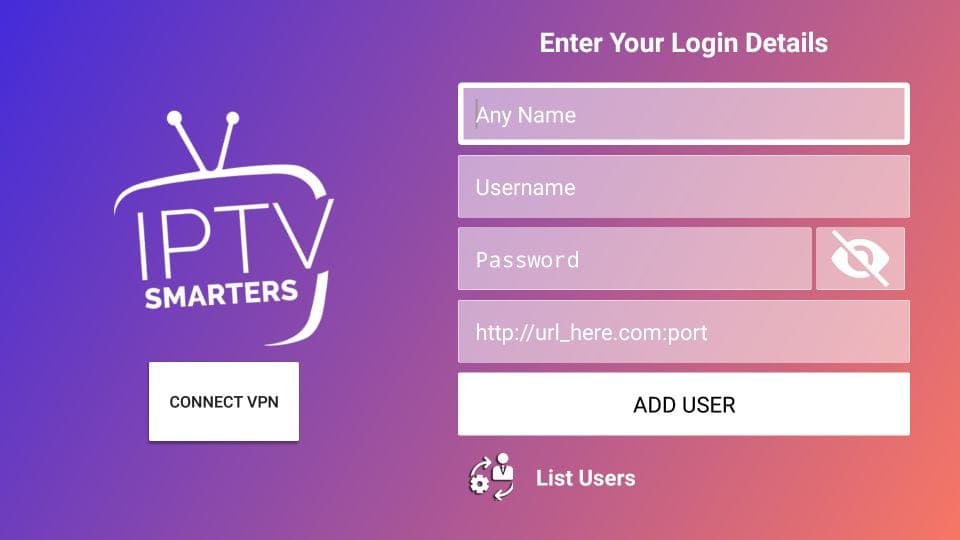
Any Name (e.g., IPTV Smarters)
Username
Password
Server URL with Port
Click “Add User” to complete the setup and start streaming instantly.